Get the official Castle APK straight from this page. It's one file, with no redirects and no fake download buttons. Below you'll find the latest version plus step-by-step install guides for your phone, Android TV and PC.
Castle is only distributed as an APK, never through Google Play. Download it from this official page so you always get the genuine, latest version, not an old or repackaged copy from another site.
How to Install Castle App on Your Android Phone
Because Castle isn't on Google Play, you install it from the APK file instead. It takes about two minutes, and you only need to change one Android setting the first time.
1
Step 1. Download the APK File
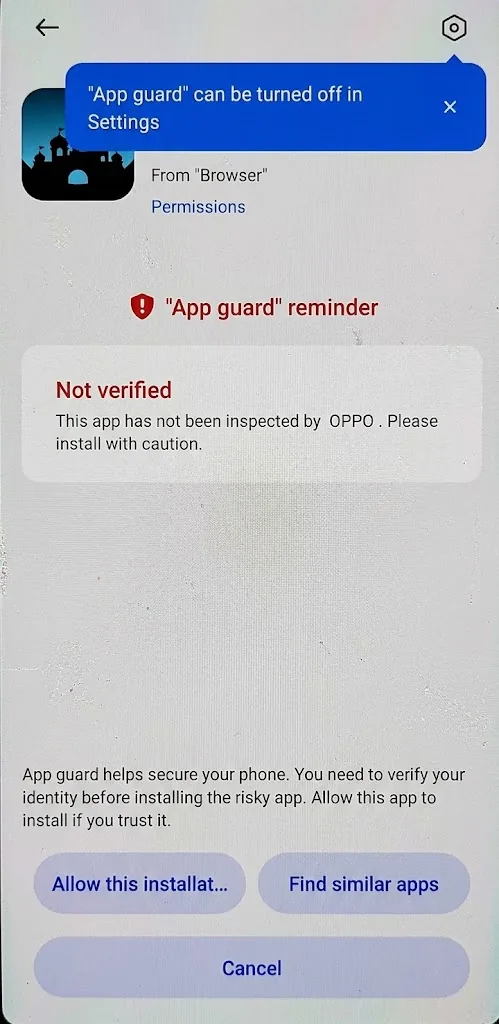
Tap the download button at the top of this page. Your browser may show a message saying this type of file can harm your device. That's a standard warning for every APK downloaded outside Google Play, so tap Download anyway to continue.
2
Step 2. Allow Install Unknown Apps
Android needs your permission once to install apps from outside Google Play.
Open Settings → Apps → Special app access → Install unknown apps.
Pick the app you'll open the APK with, such as your browser or file manager.
Turn on Allow from this source.
The menu names differ slightly between phone brands. On Android 6.0 and 7.x, look for Settings → Security → Unknown sources instead. You can switch the setting off again once Castle is installed.
3
Step 3. Open the APK File
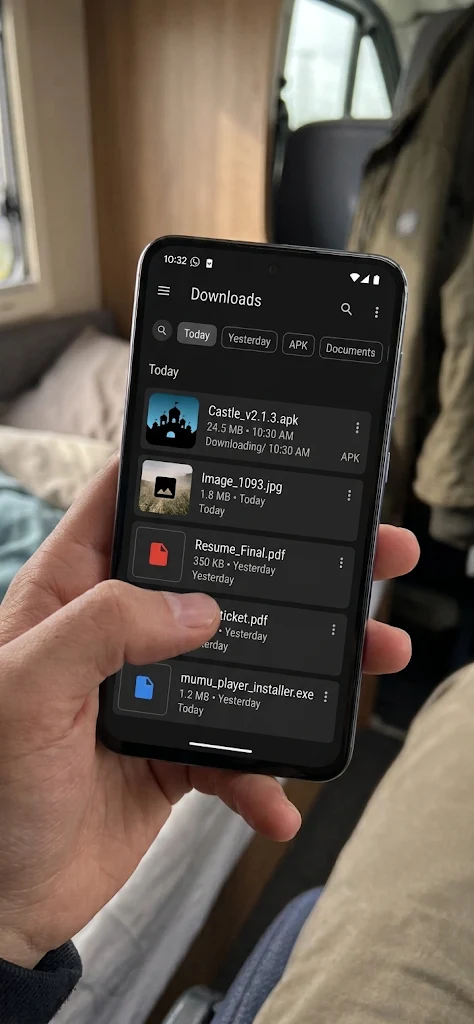
Tap the download notification, or open your file manager and go to the Downloads folder. Tap the Castle APK file to start the installation.
4
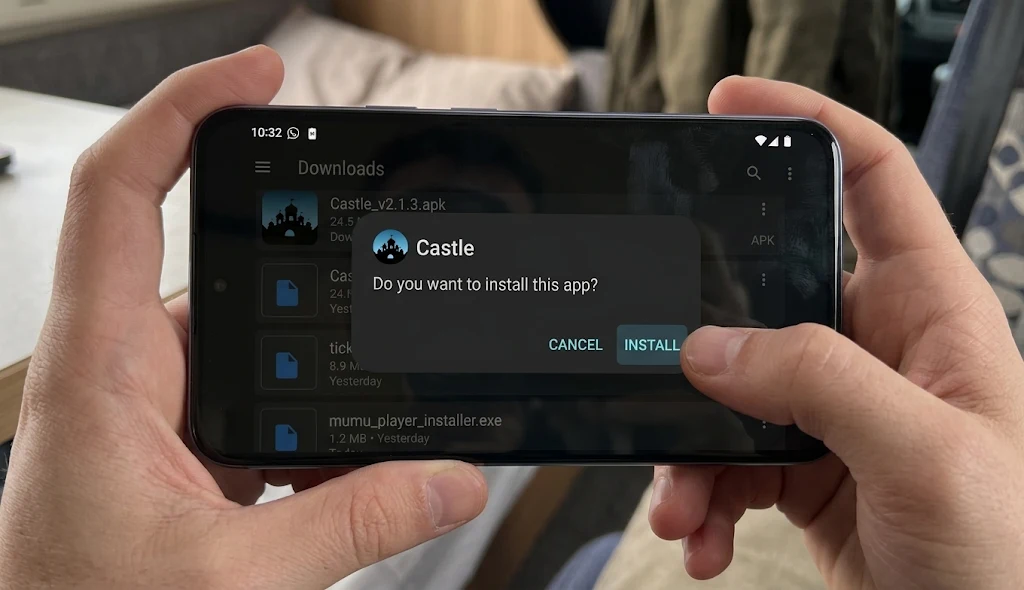
Step 4. Tap Install
Android asks whether you want to install Castle. Tap Install and wait a few seconds for it to finish.
5
Step 5. Open Castle App
When the installation finishes, tap Open. You can also launch Castle any time from its icon in your app drawer.
6
Step 6. Choose Your Language and Start Watching
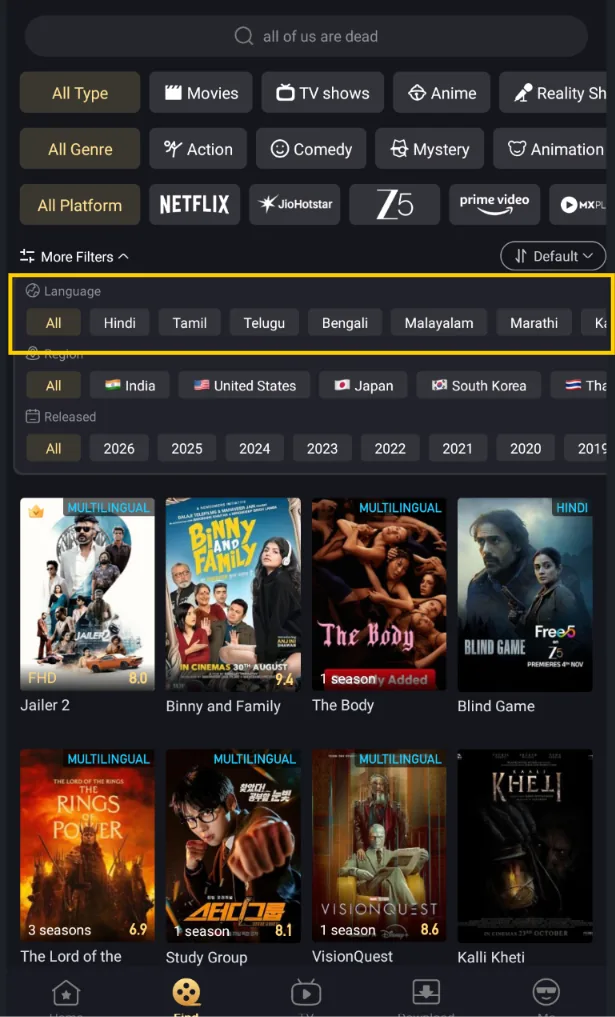
The first time you open Castle, it asks you to choose your language. Pick the one you prefer and you're in. There's no account to create, so you can start watching straight away.
Castle TV is a separate APK made for the big screen: v1.1.3, 21 MB, updated 29 Sep 2026, for Android TV and TV boxes running Android 6.0 or above. Most TVs don't have a browser for downloading APKs, so use one of the two methods below.
Method 1. Send Files to TV Recommended
Install Send Files to TV on your TV from the Play Store on the TV.
Install the same app on your Android phone.
Download the Castle TV APK on your phone using the button below.
Open Send Files to TV on your phone, tap Send, choose the Castle TV APK and select your TV.
On your TV, open the received file. If prompted, allow Send Files to TV to install unknown apps.
Tap Install, then open Castle TV and start watching with your remote.
Method 2. Via USB Drive
Download the Castle TV APK on your computer.
Copy the file to a USB drive.
Plug the USB drive into your TV or TV box.
Open a file manager app on your TV and find the APK on the USB drive.
When prompted, allow the file manager to install unknown apps.
Tap Install, then open Castle TV.
Castle TV is built for remote control navigation and includes skip intro, offline downloads, parental controls and a Hindi interface.
Castle doesn't have a desktop version, but you can run the Android app on your computer with BlueStacks, the free Android emulator used by millions of PC owners. Once it's set up, you can watch on a bigger screen and control everything with your mouse and keyboard.
Recommended Emulators
Emulator
Windows
Mac
Best for
BlueStacks 5 (Recommended)
Windows 10 and 11
BlueStacks Air, Macs with Apple silicon
Most users, with a simple drag and drop APK install
MuMu Player
Windows 7, 8, 10 and 11
Supported
An alternative if BlueStacks doesn't suit your PC
1
Step 1. Download and Install BlueStacks
Download BlueStacks 5 from the official BlueStacks website and run the installer. Setup takes a few minutes, and BlueStacks opens automatically when it's done.
2
Step 2. Download the Castle APK
On the same computer, come back to this page and download the Castle APK v2.1.3.
3
Step 3. Install the APK in BlueStacks
Drag the Castle APK file into the BlueStacks window, or click Install APK in the toolbar on the right side of BlueStacks and select the file. Castle installs automatically.
4
Step 4. Launch Castle App
Castle appears on the BlueStacks home screen. Click the icon to open it.
5
Step 5. Choose Your Language and Start Watching
Pick your preferred language when Castle opens, and you're ready to watch on your computer.
Using a Mac? BlueStacks 5 runs on Windows only. On a Mac with Apple silicon, install BlueStacks Air from the official BlueStacks website, then install the Castle APK the same way.
BlueStacks 5 System Requirements (Windows)
Requirement
Minimum
OS
Windows 10 or 11 (Windows 7 and 8 only support older BlueStacks 5 versions)
Processor
Intel or AMD processor
RAM
4 GB or more
Storage
5 GB of free disk space
Other
Administrator access and up-to-date graphics drivers
Castle never asks for your name, email or phone number, because there's no account to create. Your viewing history is linked to your device rather than to a personal profile, and it's only used to recommend what to watch next. You can read the full details in our Privacy Policy.
 Castle